One of the questions I get asked more than anything else is:
“Where on earth do I actually find the tender documents?”
Most suppliers can find the contract notice without too much trouble. But that’s usually where things grind to a halt. The documents aren’t there. The questions aren’t obvious. And people start worrying they’re missing something critical.
If I’m honest, that confusion is completely understandable. The way public sector tenders are advertised and run isn’t obvious if you haven’t been through it before.
In this article, I’ll walk you through exactly how to get from a tender notice to the actual tender documents, step by step.
Why Tender Documents Aren’t on Find a Tender
For UK public sector contracts, opportunities must be advertised on the Find a Tender Service. This is the official publication site, and it’s usually the first place suppliers spot a new opportunity.
However, and this is key, Find a Tender does not host the tender itself.
The notice you see is a summary. Its job is to tell you:
- Who the buyer is
- What they want to buy
- The contract value and timescales
- And, crucially, where the tender is actually being run
Once a tender is open to bidders (usually shown as a UK 04 Tender Notice), the documents will sit on a separate procurement portal.
What Are Procurement Portals?
Procurement portals are the systems buyers use to manage the tender process.
They’re often:
- Regional (for example, The Chest or Supplying the South West), or
- Sector-specific
This is where suppliers:
- Register their business
- Download tender documents
- Ask clarification questions
- Submit their tender response
You’ll always find a link to the correct portal inside the tender notice.
Step-by-Step: How to Get to the Tender Documents
1. Find the Tender Notice
Start on Find a Tender (or a paid tender alert service) and open the relevant UK 04 Tender Notice.
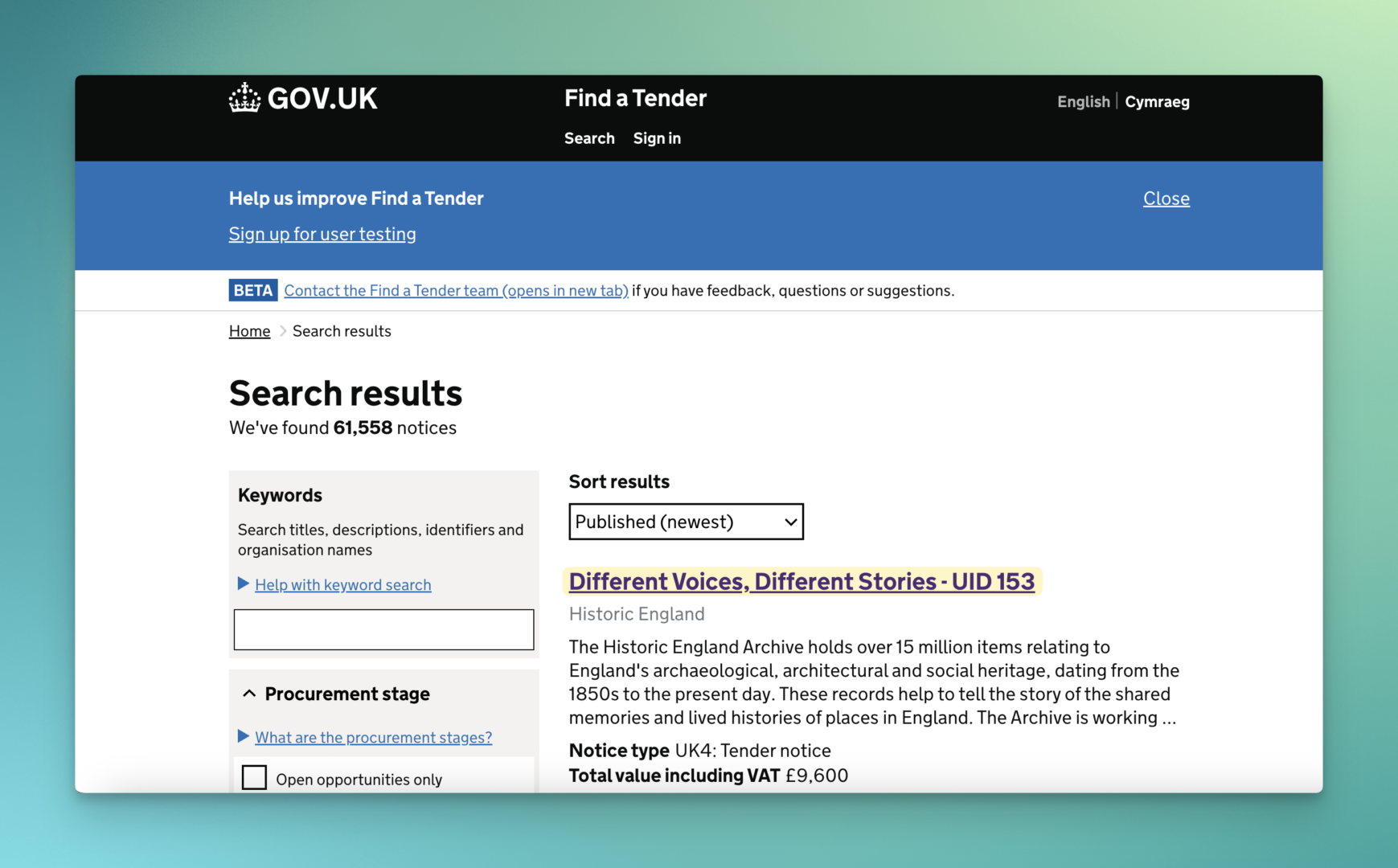
2. Scroll to the Submission Details
Within the notice, look for the submission section. This will usually include:
- The submission address
- A link to the procurement portal
- A project or reference code
That link is what you need, not the notice itself.
3. Open the Procurement Portal
Click the link, and you’ll be taken to the portal the buyer is using. You’ll often see a basic summary of the opportunity at this stage.
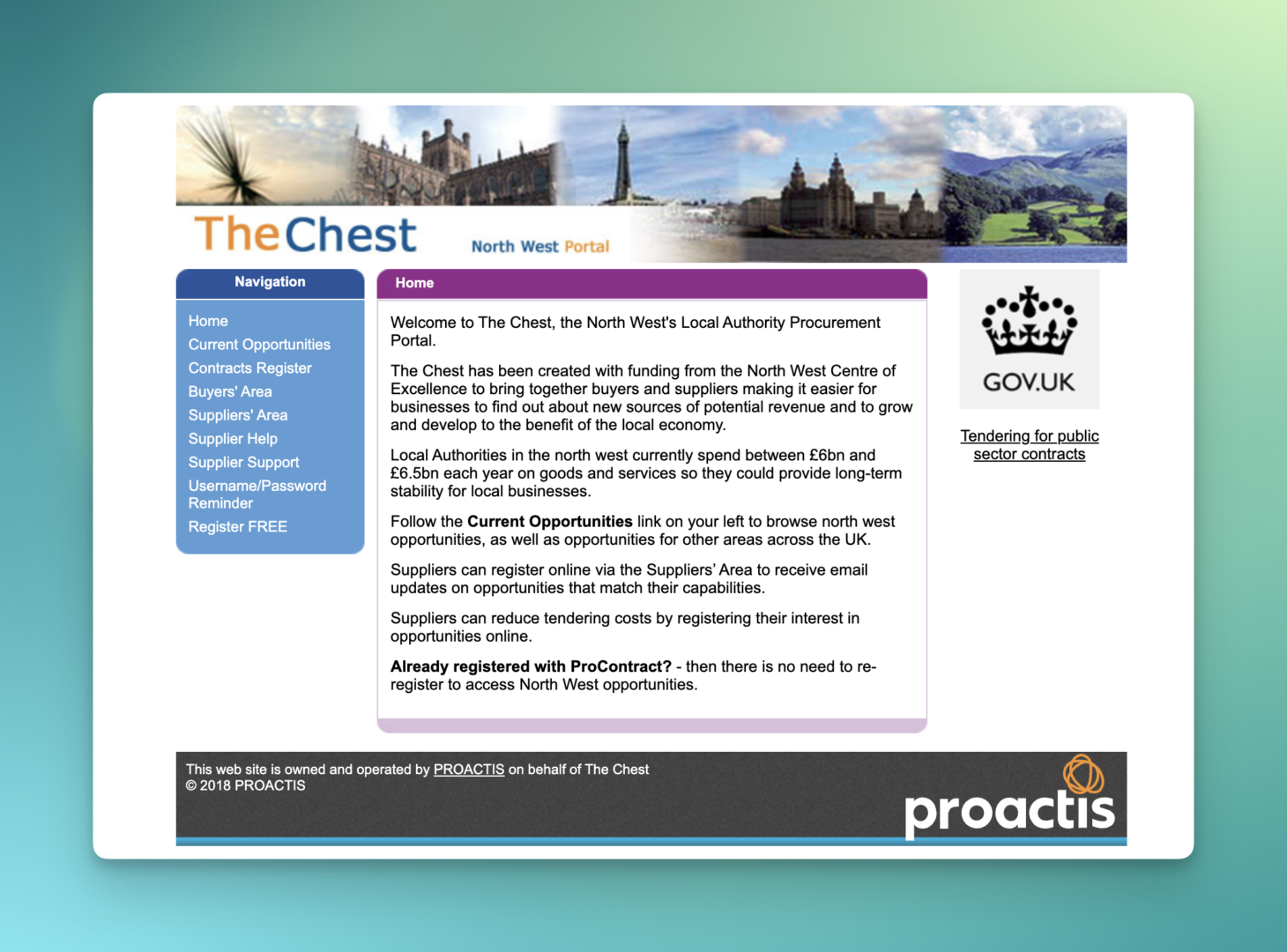
To go any further, you’ll need to register.
4. Register Your Business
Most portals will ask for:
- Business details
- Contact information
- Company registration numbers (if applicable)
- The categories your goods or services fall under
Once completed, you’ll receive a registration email.
Why the Registration Email Looks “Wrong”
This catches a lot of people out.
The email you receive may not come from the portal’s name.
For example, you might register on The Chest but receive an email from Proactis. That’s because many portals are branded front ends using the same underlying software.
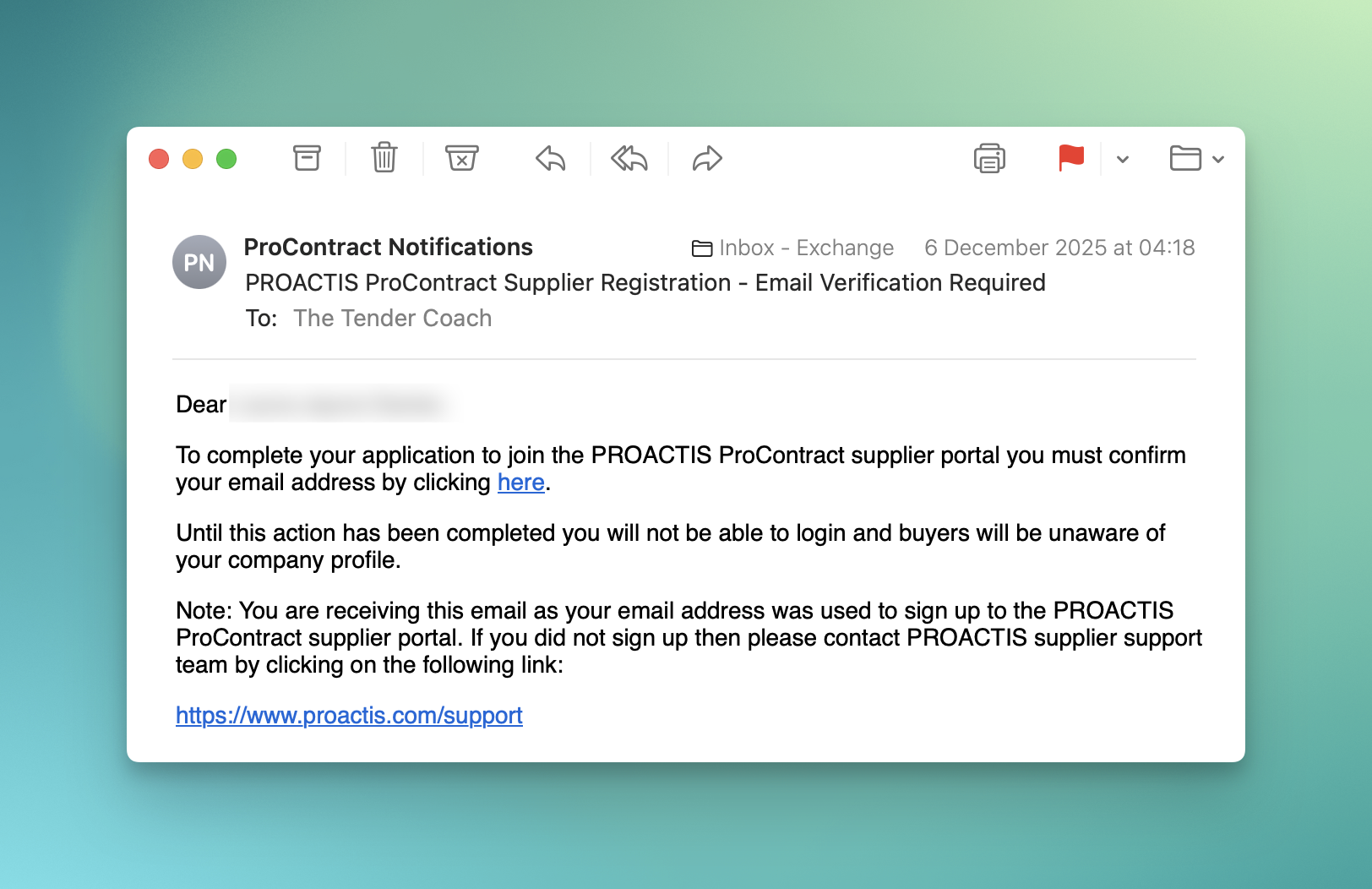
Other common systems include Jaggaer and BravoSolutions.
So if the name doesn’t match exactly, that’s normal.
Verify your email address to complete the registration.
Accessing the Tender Area
After verification, when you log in:
- You may be redirected to the software provider’s site
This is the correct place.
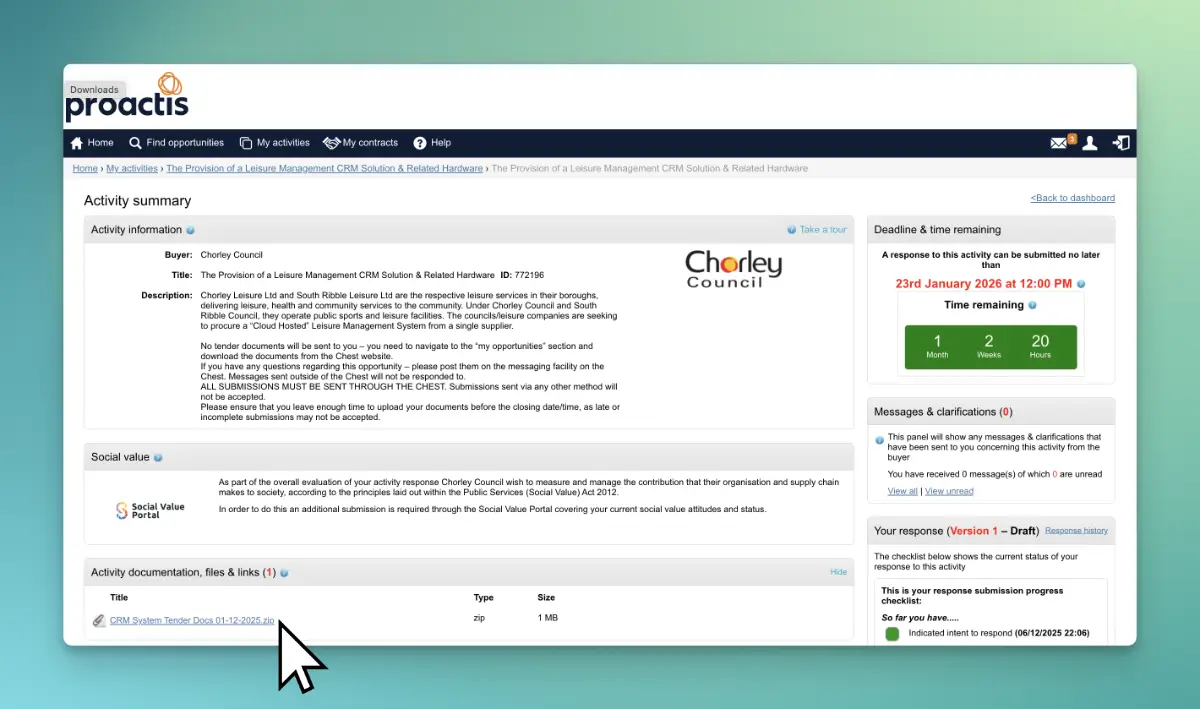
To find the tender again, use the reference code from the original Find a Tender notice. Paste it into the search bar and open the opportunity.
This is the main tender page.
From here, you’ll be able to:
- Download the tender documents
- View and submit clarification questions
- See clarification responses
- Upload your completed tender response
Key Takeaways
If you’re trying to get from a tender notice to the actual documents, the process will usually look like this:
- Find the UK 04 Tender Notice on a site like Find a Tender
- Scroll to the submission details and click the portal link
- Register your business on the procurement portal
- Verify your email address
- Log in (even if it redirects you to a different system)
- Search for the tender using the reference code
Once you’re there, you’re in the right place to start your bid.